

CARNET web for schools is a system that allows you to easily set up and update network pages through a network browser.
CARNET Web for Schools
Since March 1st, 2007, CARNET has enabled primary and secondary schools to use the Content Management System-CMS within the HUSO Hosting Service for primary and secondary schools, developed and designed specifically for school purposes.
CMS for schools is a system that allows you to easily set up and update network pages through a network browser. Whether the school decides to use CARNET CMS for schools, it shall be able to choose a number of finished designs and templates, as well as a range of functionalities and collaboration tools (news, forums, surveys, html editors, RSS, etc.). By choosing CMS, it is possible to efficiently use the network space which school shall receive within the Hosting service, without the need for a great technical advance.
Currently more than 1,200 primary and secondary schools have online pages created in CARNET CMS for schools.
The system is based on Strix portal, and for its use, the school must have an activated HUSO account. The network headquarters is activated through the application for administration of HUSO user accounts, which requires a CMS option as “web” option. In order to activate your network headquarters in CMS, you must be a resource administrator (AR).
Users
How to Become a User
A CMS user can be any school in the Republic of Croatia with an activated HUSO user account.
The network headquarters are activated through the application for administration of HUSO user accounts, which requires a CMS option as a “web” option. This procedure can be made by the resource administrator (AR) at school.
Once the administrator activates the network headquarters, all students and school staff who have the CARNET electronic identity, or the account in the HUSO system shall become users.
Questions and Answers
In order for the school to use the CARNET CMS system, it is necessary to activate it through the administration application at http://admin.skole.hr.
In the menu on the left, you need to select “Web” and then “Web on Content Management System“.
Once activation is complete, please wait a few minutes for the website to appear at the school's address.
After activation, other individuals authorized by the resource administrator can participate in the administration of the school's website. See also: “Who can administer the school page?”
The CMS activation process for schools at admin.skole.hr can only be initiated by the resource administrator (AR). It is recommended to use this role when contacting CARNET Support Services for CMS for Schools.
A registry administrator (AI) in a newly created school web in CMS may or may not have the same authority as the resource administrator.
In case there are more people who need to be able to edit school web in CMS, it is recommended to use the Group module to create a new group of authorized users in CMS. See also the question: “Can students edit part of the school page?”
To administer, you must log in with the username and password assigned to the resource administrator.
If the resource administrator has no user data, the directory administrator can assign it to them.
Due to the way the HUSO system works, it is not possible to use both a static and a dynamic website simultaneously at the same address: www.nameoftheschools.skole.hr.
The module can be added after you log on to the school’s website as a resource administrator.
In the “Portal Management” menu, select “Edit Page,” then click the down arrow in the column where you want to add the module. Choose a module that will be visible on that page only or on all pages.
All students added to the HUSO system and synchronized within the school system's CMS can edit the personalized section of the website.
Exceptionally, if the resource administrator permits a student to administer the entire page by granting them administrative privileges, the student can edit the entire school page.
To delete the link from the navigation, you must select “Administration” in the “Portal Management” menu after logging in.
Inside the administration on the left, select the link you want to delete and delete it by clicking “Delete”. Once you have set the navigation correctly, choose “Save All Changes” from the right.
It is possible to set up your own CSS file and change the appearance/color of the website. Detailed instructions can be found on this link.
We must note that the ‘CMS for schools’ is constantly being upgraded and optimized, so it is sometimes possible to apply the names of ID elements and their classes in the templates. In this case, if you are using your own CSS file, it is possible that something will not look as originally intended until your own CSS has been updated.
The layout and colors of school web pages created within the CMS are determined by the selected template, so it is not possible to change colors except by choosing another template.
When “Web” is selected as the web type in the content management system (CMS), additional files cannot be uploaded to the FTP server; instead, the "Document Archive" module is used for this purpose.
At the initial CMS-based web, all users who have been added to the HUSO school system directory shall automatically be synced with the CMS.
When you add a user to the HUSO directory later, synchronization can be done by selecting “Contacts from directory” under “Portal Management” and then clicking “Add new users.” Adding new users depends on the School Year Settings.
- The first requirement is that there are students enrolled in the HUSO directory for the new school year.
- It is necessary to start the synchronization of the users with the directory (then the new information about the students is retrieved from the HUSO system).
- only then will the new school year appear in the drop-down menu
If the current year is not explicitly defined as ‘current’, the system shall automatically determine the year to be used from the date, so that the “transition” to the next year shall occur on October 1st.
The school may, if necessary, advance the school year and schedule the following one to change timetables and grade lists earlier than planned (1.10).
Currently, it is not possible to create your own modules. Modules from different CMS systems are not compatible and cannot be installed on CARNET CMS.
Since CARNET CMS installation runs automatically on the space provided for schools, its installation is not possible on other servers.
Below is a typical “troublesome” Flash video that interferes with website administration and how this behavior of different Flash objects can be regulated.
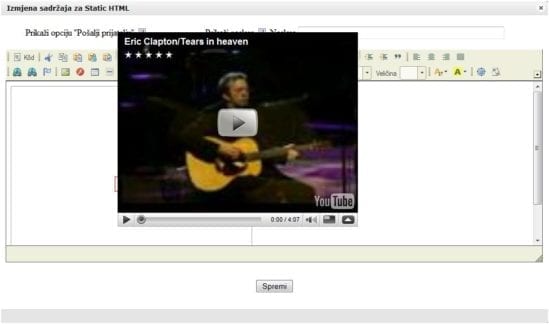
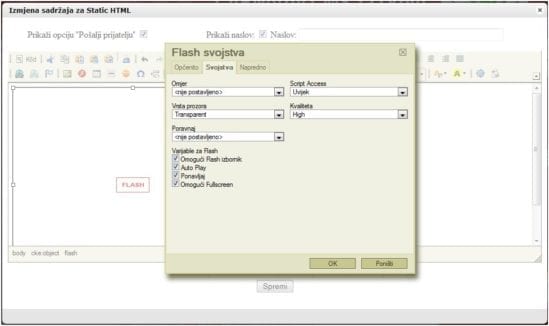
As you can see, the video covers the surface for editing the Static HTML module. To avoid such a situation, click on the Flash icon (choose “f”) when adding the flash object, select “Properties,” and choose “Transparent” from the “Window Type” menu.
You can change the page layout independently of the content. Regardless of template changes, all content posted on the school's website will remain in place but will be presented through the newly selected visual.
One of the most common mistakes when administering CARNET CMS is seemingly deleting a homepage.
The same thing happens if you set a “Clean” layout that will then display a clean white page on the Homepage.
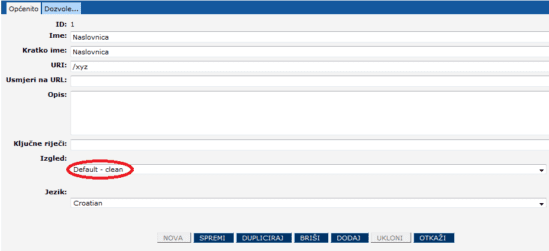
Since it is CMS, the Homepage has not been destroyed and can still be managed if an administration link is accessed, which is in the form of: www.imeskole.skole.hr/admin/sites?asid=1
You need to set a previously selected layout, and the Homepage will be redisplayed in the desired format.
CARNET CMS users are solely responsible for the content posted on their school website, its installation, and maintenance.
In the event of data loss, backup of the content is possible only in cases when data is lost:
- due to errors in the operation of the CMS system that were not caused by the user,
- As a result of malicious security attacks on CMS.
In all other cases, restoring data backups is not possible.
Contact Details
CARNET Helpdesk
Phone: +385 1 6661 555
E-mail: helpdesk@carnet.hr