

Public server
On the internet pages Public server You can find the rules and patterns for opening a user account or guest network.
Connect to any CARNET's individual internet access service Enter your AAI username (e.g., mylogin@public.hr) and your password.
Using the format: mylogin@public.hr is used to connect to the internet via CARNet internet access services to use other AAI@EduHr services.
Shape designation: mojlogin@public.carnet.hr or Ime.Prezime@public.carnet.hr is the email address obtained when opening an account for individuals.
The password is the same for both tags.
AAI@EduHr is a system through which CARNET Public Server users access services outside the server itself – see list of various network services which is accessed via AAI@EduHr.
Access your personal record at network interface and click on "Change password" and follow the instructions.
The user account is valid for one year, after which it must be renewed via administrative portal.
CARNET offers webmail service for all AAI@EduHr users.
No homepage You are logging in with your full username, the same as for internet access (e.g., John Doe would enter jdoe@public.hr). Upon first use, you will receive an additional page with a server selection. Here, enter the shortened form of your username (e.g., jdoe, without the domain) and select "CARNET – public computer" as the server.
Maintenance and editing of WordPress sites for administrators on CARNET's Public Server is done through the interface available at:
https://pubweb.carnet.hr//wp-login.php
where is the "" part within the name address obtained during the registration of a guest information service.
Thus, for example, for the hypothetical CARNET association, which has an open guest information service at the address http://pubweb.carnet.hr/carnet with the carnet.hr domain, site administration is carried out via the link: https://pubweb.carnet.hr/carnet/wp-login.php
Contact forms are added in the WordPress administration under the "Contact" menu, by clicking the "Add New" button. You can name the form by clicking on the form title, for example "Untitled", and typing the desired name, for instance "Contact". With usual fields Time, Subject i email, Mandatory It is used with the Google reCAPTCHA element for prevention spam message (spam). You can find more about the integration at appendix pages.
Multilingualism can be requested by sending a request to CARNET's User Support Service at +385 1 6661 555 or via email at helpdesk@carnet.hr.
After processing the requested query, you need to select Settings --> Languages in the WordPress administration and add a new language.
From March 15, 2015, WordPress comments will be replaced by Facebook comments.
To enable your own comments on Facebook, you need to log in to the WordPress administration, select Settings -> Facebook Comments To create an App ID, click on "Create an App to handle your comments." After entering the obtained App ID number from Facebook, to enable comments on posts, you need to check (enable) the "Singular Posts" option, or on "Pages" pages.
On certain posts/pages, if you don't want comments on Facebook, check the "Disable Facebook Comments" option at the bottom of the post/page editor.
One way to embed Google Maps with a desired location on your website is through iframe WordPress plugin.
After you have Google Maps When you find the desired location on the pages, select the gear icon in the lower right corner, then select the "Share or embed maps" option. From the "Embed map" tab, copy the link in quotes that starts with "https".
The provided link needs to be set up in WordPress as a post or page with iframe in addition, e.g.:
[iframe src="https://www.google.com/maps/embed?pb=!1m14!1m8!1m3!1d2781.9433323652675!2d
15.969535999999996,45.792362999999995
3.1!3m3!1m2!1s0x4765d68bca3bcf01%3A0xe8225cc97fc37baa!2sCARNet!5e0!3m2!1sen!2shr!4v1425457931153"]
Given the limited resources, the maximum resolution of the transferred image that can be set is 2048 x 2048 px. Images that exceed this ratio will be automatically resized (while maintaining their aspect ratio). For example, an image with dimensions of 3456 x 500 will become 2048 x 296 after uploading.
For publishing multimedia content, we recommend using external services, such as of this index.
CARNET Network Membership for Institutions
CARNET (Croatian Academic and Research Network) is a computer network connecting schools, institutes, faculties, and other institutions within the science and education system to promote computer technologies and the opportunities they offer in the world of science and education. CARNET operates under the auspices of the Ministry of Science and Education, from whose budget it is financed.
Access to the CARNET network can be used:
at the institution level, which is a CARNET member, by connecting the institution to the CARNET network
b) on a personal level via wireless internet, cable internet, or ADSL for connecting from home if you are a student or an employee of an institution that is a member of the CARNET network.
CARNET is a computer network for the academic, scientific-research, and educational community, and therefore, CARNET members are primarily institutions from the science and education system. These are:
- Universities and their constituent faculties
- other higher education institutions
- scientific research institutes
- elementary and secondary schools.
It is important to note that membership in the CARNET network is not granted by CARNET, but by the minister of science and education based on Decisions on acquiring CARNET user status and rights.
Requests for membership in the CARNET network should therefore be sent to the following address:
Ministry of Science and Education
Donje Svetice 38
10,000 Zagreb
To make it easier for users to apply for membership in the CARNET network, CARNET has created a special form that needs to be filled out and certified by the institution's principal/dean and sent to the Ministry. The form lists all the required information:
It is necessary to emphasize why your institution needs a connection to the CARNET network and at which address you wish to connect. After that, you will receive a Decision from the Ministry informing you whether your request has been granted and what type of membership your institution has received.
A copy of the Decision is also sent to CARNET. Exceptionally, the decision on temporary membership may be made by the CARNET Management Board.
According to the aforementioned Decision, the Minister of Science and Education may grant your institution one of three types of membership in the CARNET network.
Full membership is granted to legal entities whose core activities are financed from the budget of the Republic of Croatia, specifically from the Ministry of Science and Education (public higher education institutions, scientific research legal entities, and secondary schools). The decision to acquire full membership status is made by the Minister of Science and Education, and membership is granted indefinitely.
Associate Membership – This can be obtained by legal entities whose activities contribute to the functioning of the science and higher education system and, in the opinion of the Ministry of Science and Education, are entitled to such status. The decision on acquiring the status of an associate member is made by the Minister of Science and Education and is valid indefinitely.
Temporary Membership – This can be obtained by legal entities, specifically healthcare and cultural institutions, educational institutions, state bodies, and associations, who are granted temporary connection to the CARNET network for specific jobs and activities. The decision to acquire temporary membership status is made by the Minister of Science and Education or the CARNET Administrative Board, based on cooperation in a pilot project with the institution, and it is granted for a specified period.
CARNET provides and leases the telecommunication line required for connection to the CARNET network to its full members, and assigns them the communication equipment necessary for connecting to the CARNET network.
Temporary and associate members are obligated to finance and procure communication equipment themselves, as well as lease the required telecommunications line for connection, according to the specifications determined by CARNET, unless otherwise decided by the Minister of Science and Education.
Students, pupils, and staff of full and associate member institutions have the same rights regardless of the type of membership (see 8.). Temporary members do not have the right to access the AAI@EduHr system, except in exceptional cases, if the AAI@EduHr Council decides so.
- right to connect to the internet via the CARNET network, the costs of which are borne by CARNET
- right to use assistance intended for end users in the form of Customer Support Service
- right to use CARnet's services, depending on the type of membership and type of institution, the list of services is located here.
By creating an electronic identity within the AAI@EduHr system at a CARNET member institution, CARNET offers the following services to pupils, students, and staff of full and associate members of CARNET:
- the right to use CARNET services, depending on the type of membership and the type of institution they come from; the list of services is located here.
The Ministry of Science and Education also forwards a copy of the Decision to CARNET's Customer Service, which then contacts the new member and arranges an introductory meeting. At this meeting, the members' representatives are informed about the rights and obligations arising from acquiring CARNET membership status, and the procedure for connecting to the CARNET network is agreed upon.
In order to start the merger process as soon as possible, it is necessary for the institution to meet certain administrative and technical conditions. Therefore, it is necessary as soon as possible to:
- Name the persons who will be in charge of contact with CARNET:
Academic institutions:
- Contact person – CARNET Coordinator
- Technical contact person – CARNET system engineer.
Educational institutions:
- Resource administrator
- directory administrator.
- Sign a contract with CARNET regulating mutual rights and obligations related to the use of services and resources. CARNET will send the contract after the meeting has taken place.
- Satisfy the minimum technical requirements for connection at each site described in document CDA0018.
After receiving the designated contact person for CARNET and notification of fulfilling the minimum technical requirements, CARNET will proceed with connecting the institution.
Appointment forms are available to school principals in the application. signature.carnet.hr When selecting “Templates” on the toolbar or via a direct link:
Directory Administrator Nomination Form
Resource Administrator Nomination Form
e-Diary Administrator Appointment Form
Other forms for nominating persons of contact with CARNET, duly certified and signed by the dean/director of your institution, should be sent to our address:
Croatian Academic and Research Network – CARNet
Josipa Marohnića 5
10,000 Zagreb
After we receive the nominations, we will contact the nominated individuals to provide them with further instructions for the task.
The CARNET coordinator is the official contact person for CARNET and the member institution. Organizational skills are desirable in order to plan and encourage the best possible implementation and use of CARNET resources within the member institution, and to organize the use and application of these resources.
Each institution can have only one designated CARNET coordinator, regardless of the number of locations where the institution is situated.
After an institution appoints a new CARNET coordinator, CARNET automatically dismisses the person who previously held that position.
The CARNET coordinator is the person who informs CARNET about all changes and needs of the institution, which includes administrative changes, a report on the status of CARNET equipment within the institution, and submitting requests to CARNET for upgrading communication equipment or connections.
Among other duties, CARNET coordinators are responsible for informing users and the institution's administration about CARNET's work and activities, completing CARNET's annual reports, raising awareness about the benefits of information technology in the institution's daily operations (more active IT use), and cooperating with the administration and system engineer for optimal equipment utilization and achieving quality services for CARNET users. Coordinators from all institutions actively participate in the User Council, an advisory body to the CARNET Director.
A CARNET system engineer is a person with adequate technical education and experience in working with computer technologies through which CARNET establishes technical contacts regarding computer and communication resources that CARNET has made available to a member institution. One of the system engineer's responsibilities is to take care of the maintenance of CARNET equipment located at the institution.
Each institution can have only one designated CARNET system administrator, regardless of the number of locations where the institution is situated.
After the institution appoints a new CARNET system engineer, CARNET automatically relieves the person who previously performed that function of their duties.
The directory administrator is an official representative of the school who must be an employee of the member institution and is appointed by the principal. The directory administrator is a role associated with the relationship between CARNET and the member institution, and it is not a job position. The administrator is obliged to respect and implement decisions and consider recommendations made by CARNET that relate to CARNET's resources made available to the member institution.
The directory administrator is an administrative person in the school responsible for updating the LDAP directory. The accuracy of the directory is of utmost importance because the directory is part of the unified authentication and authorization infrastructure (AAI).
It is recommended that the administrator be a school employee who is otherwise responsible for maintaining student records, i.e., someone from the school's administrative staff.
At the beginning of each school year, the administrator updates the directory, meaning they add electronic identities in the AAI@EduHr system for new students and teaching staff, and delete users from the database who no longer have student or school employee status. In addition to the obligation of annual directory updates, the administrator is also required to update the directory's status upon changes (e.g., the arrival/departure of new teaching staff or students to/from the school).
The resource administrator is an official representative of the school and must be an employee of the member institution, appointed to that position by the director. The resource administrator is obliged to respect and implement decisions and consider recommendations made by CARNET, concerning CARNET resources made available to the member institution.
An IT-educated person, an "Information Resource Administrator" is responsible for assigning resources to end-users, and can only assign resources that CARNET has made available to their school, and only to users within their school.
Each school can submit requests to CARNET for additional resources and establish technical contacts regarding computer and communication resources provided by CARNET to its members. If a member has a larger number of individuals, collaborators, or institutions responsible for the member's computer and communication and information infrastructure, the officially appointed resource administrator is exclusively the person through whom technical contacts are made between the member and CARNET.
He is responsible, on behalf of the member, for the correctness and stability of the functioning of resources provided by CARNET to the member, as well as for the general technical and security condition of the member's computer and communication system connected to the CARNET network.
Each institution may have only one CARNET coordinator and one CARNET system engineer or one resource administrator and one directory administrator, so each new appointment automatically relieves the old one. Therefore, an official dismissal is not necessary.
After receiving notification that the minimum technical requirements in the institution have been met and receiving the nominations of contact persons, CARNET immediately begins negotiations with telecommunications operators regarding the method and possibilities of connection. However, the actual realization depends on CARNET's budget and procurement process. Delays can also occur due to the lack of adequate telecommunications infrastructure to connect the location.
After the institution meets the minimum technical requirements stipulated in the document CDA0018 that way it is ready to connect to the CARNET network, it is not necessary to send a letter to CARNET, but it is enough to inform the Customer Service via e-mail at helpdesk@carnet.hr.
Regardless of membership type, CARNET members are entitled to connect an unlimited number of additional locations to the CARNET network. The decision to include an additional location in the CARNET network connection plans is made by the Minister of Science and Education, individually for each additional location.
The decision to include an additional location in the CARNET network connection plans is made by the Minister of Science and Education.
To request the connection of additional location(s) from the Ministry, you need to fill out a form and send it to the address specified on the form. If the institution is moving from one location to another, you must indicate on the form the original location from which the institution is moving so that we can transfer the leased lines from the operator, and you must also provide the address of the location(s) for which the connection is requested.
Along with the appropriate form, the Ministry's decision granting permission to work at the requested location, or the decision to work under changed conditions for the requested location, must be attached as supporting documentation for the request.
A copy of the Decision is also received by CARNET's Customer Service, which will inform the member representatives about the conditions that need to be met for the connection process to begin as soon as possible (CDA0018). The procedure is then the same as for the basic location connection – when the CARNET coordinator informs CARNET via e-mail at helpdesk@carnet.hr that the conditions have been met, the connection process will begin.
If a CARNET network member is moving to another location, they are obliged to submit a change of location request to the Ministry of Science and Education at the following address:
Ministry of Science and Education
Donje Svetice 38
10,000 Zagreb
The application is submitted by completing:
For the relocation of a school or dormitory, in addition to the appropriate form, the documentation supporting the request must include a decision from the Ministry granting permission to operate at the requested location, or a decision to operate under changed conditions at the requested location.
After both the institution and CARNET receive the Ministry's Decision, the procedure is the same as for connecting the main location.
CARNET does not provide computer equipment to its members.
The institution and CARNET are obliged to respect the provisions of the signed contract, which ensures the highest quality of cooperation. This implies, among other things, that every CARNET member institution should:
- ensure the right to use CARNET resources and enable the continuous opening of electronic identity in the AAI@EduHr system
- regularly inform all its users (employees, students, pupils) about CARNET's services and rules
- Enable promotion and presentation of CARNET's activities and operations within the institution
- prevent the use of CARNET services for endangering other systems on the internet
- set up and maintain www and name service
- publish and update information about the institution's activities and prevent the use of the institution's information services by third parties
- inform CARNET about all technical upgrades to the existing local computer infrastructure that enable additional access to resources offered by CARNET to the member
- An academic institution is required to have an updated DNS server for the institution, an LDAP server, and a RADIUS server.
- have outgoing email antivirus protection
- The institution may not, directly or indirectly, charge for access to and use of CARNET resources, nor may it permit the use of the institution's information services for commercial purposes.
Annual reports are surveys conducted by the Customer Service to monitor user satisfaction and the possibility of introducing new technologies and services into the CARNET network. According to the contract between CARNET and member institutions, CARNET coordinators and resource administrators are obliged to fill out the annual reports. Based on the reports, CARNET and the Ministry strive to improve their services, monitor the need for the application of certain technologies, and the utilization of allocated resources.
CARNET membership status ceases in one of the following ways:
- By decision of the Minister of Science and Education, if a member ceases to meet any of the conditions based on which it received CARNET member status
- expiration of the period for which a member state was granted status (for temporary members)
- if an institution does not meet a condition or violates the provisions of the mutual agreement between the member and CARNET
- By decision of the CARNET Management Board (for temporary members who gained status by decision of the Management Board).
In case of problems connecting to the CARNET network, please contact the User Support Service by email at helpdesk@carnet.hr or by phone at +385 1 6661 555.
In case of additional questions, please contact Customer Support Services via email to helpdesk@carnet.hr or by phone at +385 1 6661 555.
Domain
The most frequently asked questions and answers regarding the registration and administration of free and paid .hr domains and domain name disputes can be found on the website Domene.hr.
CARNET CMS for schools
We are backing up your website and will keep it for 30 days. In case it is necessary to restore the website to a previous version, please send a request from the named resource administrator's address to helpdesk@carnet.hr.
Given that the system is based on a Multisite environment, you are unable to add any plugins. Such actions would be a security vulnerability for your website, as well as for the websites of all other CARNET institutions. You can send us a plugin proposal to helpdesk@carnet.hr, which we will review and add for all CARNET institutions using the CARNET CMS for schools.
You do not need to use CARNET templates. You can build a new website using numerous WordPress and Divi materials and instructions available through popular internet search engines (Google, Bing, etc.).
Access is enabled for school employees, but the resource administrator must first access the system to create a website staging environment. Once the website staging environment is created, employees can access the system, and their user accounts will be created and added to the “Users” list. All employees have the role of subscriber until the resource administrator changes it to another available role: Administrator, Editor, Author, Contributor, or Translator.
We are able to create a local WordPress account for external school collaborators who are assisting with the creation of the new school website. To enable access for an external collaborator, a request for access must be sent from the email address of the school's designated administrator. The request must include the external collaborator's first name, last name, email address, the name of the school, and a link to the school's website.
The institution can migrate an existing website created in WordPress to CARNET's server using the import option in the WordPress interface. We note that some WordPress plugins used in the creation of the website are likely not supported on the CARNET CMS for Schools service for security reasons. Consequently, it is possible that the website will not function correctly, that not all content will be displayable, etc. We recommend adapting the website content to the CARNET CMS for Schools service before importing.
The old school website, before the new one goes live, will be archived by CARNET and will be available at the address: https://web-arhiva.skole.hr/school-identifier
On the specified page, only archives of users who have used CARNET's web hosting service, i.e., who have used the old CMS for schools service based on Strix, will be available.
News can be transferred from the old website via the "Strix News" option located in the WordPress navigation. After selecting the news and starting the transfer, the transferred news can be viewed under the "Posts" option. When transferring news, the text, publication time, and category are transferred.
The transfer of other content such as photos, images, documents, and the like is not currently automatically supported. The mentioned content needs to be transferred by re-importing it into the "Media" collection.
A staging environment is used to edit the school's new website while the old website remains accessible to staff, students, and parents.
When the new website is ready within the CARNET ID, you need to submit a request to promote the school's test website to production. With this request, the old website will cease to be available, and the new website will be displayed on the school's domain, e.g., os-naziv-skole.skole.hr.
The request must be sent from the school resource administrator's email address to helpdesk@carnet.hr, and the institution's name and domain must be stated.
- It is necessary to thoroughly study the offered templates under the "Browse" option.
- The desired template will be uploaded to the school website using the "Choose" option.
- After selecting a template, the next steps involve editing and refining the school website, as well as uploading news, media, and documents.
- When the school's new website is ready, a request to put it into production must be sent to helpdesk@carnet.hr. The request must be sent from the designated administrator's email address and include the institution's name and the institution's website domain.
- After CARNET receives the request, it will archive the old website and display your new WordPress website on the school's domain.
CARNET webmail
The system engineer of your institution, or the user directory administrator for the education system, is responsible for managing your passwords. You cannot find out or change either of the two required passwords through webmail, nor can we do it for you.
From another email account, send a description of the problem to helpdesk@carnet.hr and be sure to include all essential information (name, username, and server name or institution where your email inbox is located). Problems with webmail are possible, but far rarer than problems with passwords or mailboxes at your home institution.
After logging into Webmail, follow a series of links: "Options" -> "Edit options for" -> "Global Options" -> "Select your view mode". Here, choose your desired view mode.
If you use the Croatian interface translation, the sequence will be: "Options" -> "Edit options for" -> "Global options" -> "Display options" -> "Choose display mode".
Separate addresses with commas, for example:
To: marko@skole.hr, petar95@gmail.com, ivica@yahoo.com
Report a problem to Customer Support at helpdesk@carnet.hr, will forward your request to the webmail team. After verification, the server will be added to the server list. If the server is unofficial, i.e., it does not belong to the category of servers we add to the predefined list, you can add more email servers yourself within the same AAI@EduHr identity. Instructions can be found at the link User Instructions.
CARNET hosting for schools
All students and school staff have their electronic identity user accounts created in the AAI@EduHr system by the directory administrator.
U Application form for connecting to the CARNET network for primary and secondary schools and student dormitories It is necessary to provide the full name of the new directory administrator and send the form completed by the school to CARNET's address.
No Portal for Schools, in the "Schools" section on the right side, there is a module "Important Documents" which contains a list of important documents for school staff and students. Among them are CARNET services for teaching staff, CARNET services for primary school students i CARNET Services for High School Students in which CARNET's services intended for students and teachers are listed.
It is necessary to contact CARNet's Helpdesk service via email helpdesk@carnet.hr or send a request for user data by fax to +385 1 6661 630. After verification, the user data will be sent to the directory administrator by mail.
No Portal for Schools, in the "Schools" section on the right, there is a module "Important Documents" which contains a list of important documents for school employees and students. One of them is Instructions for using the CARNET Webmail interface in which the creation of a new email account is described in detail.
To use e-mail, your HUSO identity is required. You log in to the CARNET webmail interface with it, as described in the other answer. It is also possible to set up your own client (MS Outlook, Thunderbird, and similar) according to the instructions at links.
To avoid this situation, it is important to select the "create" option at the end of the entry when creating the user. There is also a possibility that the previous institution did not de-register them, if the employee worked elsewhere before. Another common problem is that the user did not previously work in a school, in which case a new user must also be created.
A request for increased web space needs to be sent to CARNET's Customer Support Service. The request should include the exact required space size and the reason for the increase.
One of the most common problems is an incorrectly entered personal identification number - OIB, or the control digit itself is incorrect.
The password can be changed on the page https://webmail.skole.hr (under Other -> My user account -> Password) or on the page http://lozinka.skole.hr
Instructions for setting up pages using several different FTP clients are available at http://www.skole.hr/dokumenti?dm_show_folder=534. The provided instructions describe in detail the procedure for setting up the school pages on the HUSO system servers.
For employees hired by a specific date, the exact employment termination date is entered, and for employees hired indefinitely, the value NONE is entered.
sys.backup
Answers to frequently asked questions about the sys.backup service are available at sys.portalu.
sys.monitor
Answers to frequently asked questions regarding the sys.monitor service are available at sys.portalu.
sys.debian
Questions and answers
CARNET's Debian typically is released approximately 12 months after the official Debian release. The emphasis is on having stable and reliable servers within CARNET's network, rather than having the latest software, which is not sufficiently tested and reliable. Security is not compromised in this process, as Debian's security team takes care of Debian's security for up to 5 years after the distribution's release.
More information can be found at System Administrator Portal.
sys.virtual
Service details are described in the document Virtual Server Services for Member Institutions (VPU).
Video conferencing notebook
TCR classrooms can also be seen at card, the same functionality, availability, as well as booking must be done on the website: http://tcr-rezervacije.carnet.hr
Due to technical malfunctions, some halls are temporarily or permanently unavailable.
Google Workspace for Education
Service Activation
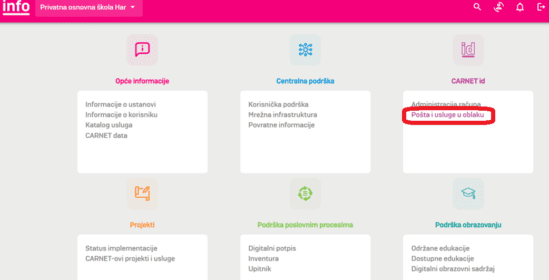
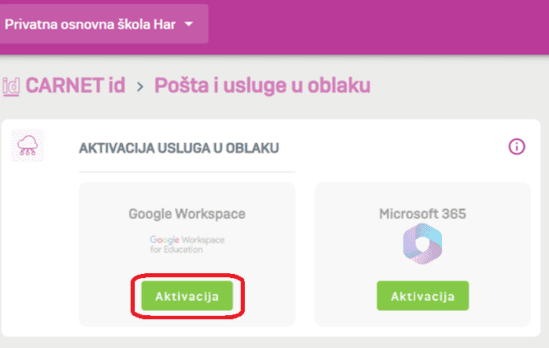
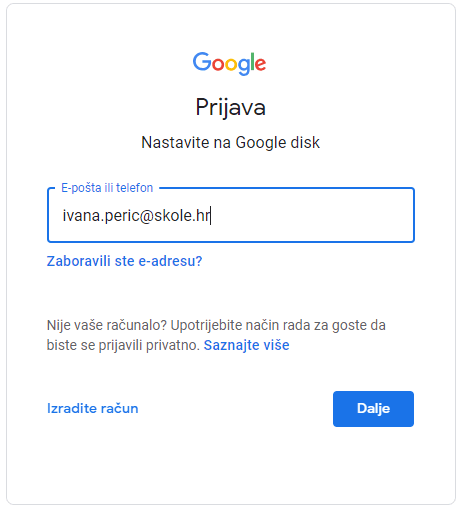
To activate Google Workspace for Education service for your skole.hr user account, you need to log in to CARNET info Click on AAI@EduHr, then in the CARNET ID section click on „Mail and Cloud Services“ (Image 1), and in the Cloud Activation Service section under Google Workspace click „Activation“ (Image 2).
Adding a Google Workspace for Education account to tablets from the School for Life project
The first step is in webmail, it serves to activate the school.hr account on Google Workspace for Education and can be done from any computer, not necessarily from a tablet:
- Open https://webmail.carnet.hr, select "Desktop mode" If you are on a tablet and log in with school.hr user credentials.
- In webmail, open the page from the Mail menu | Office365 / Google Workspace for Education (GSuite).
- At the bottom of the page, you can find the status of the Google Workspace for Education service for your user account. If it's inactive, follow the activation link to activate the account. If the account is already activated, proceed to step 6.
- The activation process takes up to 60 minutes, and after activation, the user receives a confirmation message to their webmail address.
- After receiving the email, it is important to log out and log back into webmail so that the system can check your new Google Workspace for Education status.
- Reopen the page from the webmail menu Mail | Office365 / Google Workspace for Education and at the question at the bottom of the page “Where do you want to receive new email?” select Google Workspace for Education and "Save".
- Log out of webmail.
The second step is on the tablet and is used to connect the user's Google Workspace for Education account to the tablet:
- On the tablet the user will receive, open the ProMDM Fort app, and in the menu in the upper right corner of the interface, select the last option, „Add Google Workspace for Education skole.hr account.“.
- Log in with the tablet user account and end the process with "Done".
- Check: Selecting the Gmail app on the tablet will open the email for that student.
Using email through Google Workspace for Education
To use Google Workspace for Education services to receive and send email for your school.hr user account, you need to have an active Google Workspace for Education account and set up email forwarding via webmail interfaces, by selecting the Mail | Office365 | Google Workspace for Education menu, and by selecting the Google Workspace for Education option to the question "Where do you want to receive new email?".
If you do not set up forwarding, the user's email will continue to arrive in the CARNET email inbox.
After successfully setting up email forwarding, you can access the new email mailbox via the link https://workspace.google.com/gmail.
Mail forwarding instructions are also available at the link Instructional simulation for forwarding emails from CARNET webmail to O365 or Google Workspace for Education.
Check which user account you are using to access the Gmail service. If you are a user of a private @gmail.com account, activating an @skole.hr Google account has given you a second Google account, and you need to verify which account you are using to access your Gmail inbox. Select the Google account icon (in the top right of your browser) and check if the active account is in the @skole.hr format. If the account is not active, select "Add another account" and enter your @skole.hr login details.
Electronic messages received before forwarding was set up remain in the mailbox where they were initially received. Only the user can manage their messages and migrations of old messages, and they are available instructions How to transfer all old emails to a new Google Workspace for Education Gmail inbox and delete them from the original inbox.
The CARNET for skole.hr domain is managed by the Google Workspace for Education service. You can review the email service options on the pages at Comparison of capabilities, in the table column "Google Workspace (includes Google Workspace for Education)".
Google Workspace for Education is a service from Google's Google Workspace suite (formerly known as G Suite for Business) and is free for educational institutions to use. Visually, Google Workspace for Education tools are similar to Google tools for private use, such as the Gmail tool and the web interface for reading emails, but Google Workspace for Education Gmail offers greater capabilities and capacity:
| Gmail | Google Workspace for Education Gmail | |
|---|---|---|
| Purpose | Private email communication | Business Email Communication |
| Email domain | @gmail.com | ime.prezime@skole.hr |
| Mailbox capacity | 15 GB | Unlimited |
| Web interface | Web interface, IMAP, POP | Web interface, IMAP, POP, Microsoft Outlook, according to Welcome |
You can review the differences in other characteristics of available services and tools compared to Google services available to private individuals. here.
GDPR compliance
Use of Google Workspace for Education services is voluntary and cannot be anonymous. For more information on service activation compliance with GDPR regulations, personal data usage, and Google Workspace for Education security settings, please read here.
Office 365 for Schools
Frequently asked questions can be found on the website Office 365 for Schools.
Using email through the Microsoft Office 365 service
To use Outlook and Microsoft Office 365 services to send and receive emails for your skole.hr user account, you need to have an active O365 account and set up email forwarding. webmail interfaces, by selecting the Mail | Office365 / Google Workspace for Education menu, and selecting the O365 option when asked "Where do you want to receive your new email?".
If you do not set up forwarding, the user's email will continue to arrive in the CARNET email inbox.
After successfully setting up email forwarding, you can access the new email mailbox via the link https://outlook.office.com.
Mail forwarding instructions are also available at the link Instructional simulation for forwarding emails from CARNET webmail to O365 or Google Workspace for Education.
Using the Microsoft Teams service
If you don't see „Calendar“ in the Microsoft Teams app, you haven't switched to receiving emails in Microsoft Office 365 for Schools. Follow the steps shown on this links how to move your email. After that, your calendar will appear in Teams.
You can track student activity in the MS Teams application according to the instructions below links.
There is in English on the following links.
Unfortunately, the requested option is not available.
CARNET Meduza
Frequently asked questions can be found on the website Jellyfish.
Content filtering
No, the ban on displaying objectionable websites applies only to internet access from computers in elementary and secondary schools and those higher education institutions that requested to be included in the system.
By decision of the Ministry of Science and Education, websites falling into the following 18 mandatory categories are filtered:
- Adult
- Alcohol
- Cheating and Plagiarism
- Child Abuse Content
- Dating
- Extreme
- Filter Avoidance
- Gambling
- Hacking
- Hate speech
- Illegal Activities
- Illegal Downloads
- Illegal Drugs
- Lotteries
- Non-sexual Nudity
- Pornography
- Tobacco
- Weapons
By completing the "Request for Inclusion in the Undesirable Content Filtering System," additional categories can be filtered. When completing the request, the responsible person decides which of the 78 offered categories they wish to prohibit from being displayed within their institution.
Only unencrypted network traffic over the HTTP protocol and encrypted network traffic over the HTTPS protocol will be filtered. When filtering encrypted network traffic, the system cannot read the content itself, so its processing does not violate user privacy.
All other traffic not going over HTTP and HTTPS protocols will not be filtered: e-mail, P2P protocols, instant messenger, FTP, news messages and other things.
If you believe the page is miscategorized, please send its URL to the email address filtriranje@skole.hr Our administrators will also review the query and inform you of the action taken.
Abuse of service
CARNET's Abuse eng. abuse = abuse) the service receives and processes reports related to computer security incidents and abuses of CARNET resources.
CARNET's users Abuse services all persons who report incidents or violations of acceptable online behavior committed by a user of the CARNET network. The reporter themselves does not have to be a user of the CARNET network.
The basic starting point for any action are the facts stated in the received incident report. Abuse The Service responsibly and accurately examines available data to take further action. Each report is classified according to the specified incident division. If the Service receives a report that indicates multiple potential violations, the one deemed most serious is processed first. The Service respects user privacy and uses data in the manner described in the Service's operating rules. The Service provides data to third parties exclusively on the basis of a court order or upon a police request during an investigation. All correspondence is archived.
CARNET-ovu Abuse You can contact the service by email at abuse@carnet.hr or by phone at +385 1 6661 655.
Computer incident reports are sent exclusively by email to abuse@carnet.hr.
CARNET's working hours Abuse The service hours are from 9 AM to 4 PM.
In accordance with the Electronic Communications Act, CARNET, as an internet service provider, is obligated to retain data related to user internet connections. Accordingly, CARNET maintains a database of its users' connections. Furthermore, the same law requires public communication network operators and publicly available electronic communication services to retain data on electronic communications necessary to determine the origin, destination, time, duration, and type of communication. The retention of data that reveals the content of communication is prohibited. CARNET's Abuse The service responds exclusively to user reports via email. Retained data is disclosed exclusively to employees of the Ministry of the Interior and the Ministry of Justice upon presentation of a warrant.
CARNET's Abuse the service warns and sanctions users of the CARNET network who have violated any of the provisions „Decisions on Acceptable Use of the CARNET Network” these generally accepted norms of user behavior in communication between individuals or users in group communication. In short, they are:
- spam – unwanted, usually advertising messages that are distributed to a disproportionately large number of users
- copyright infringement – distribution of content such as pirated software, music, movies, which is protected by the Copyright Act
- unauthorized access – (successful or unsuccessful) attempt to access someone else's computer without permission
- injury netiquette - rules and norms of desirable behavior in the communication of an individual or group on the internet
- Rules for opening, administering, and using user accounts on CARNET's public server
- Malware: (viruses, worms, trojans).
In more detail
- Viruses are malicious codes with the ability to self-replicate; they add their code to an existing executable file, waiting for the „infected” file to be used to reactivate themselves.
- Worms – malicious code with the ability to self-replicate, which spread by copying their entire content through a communication medium, e.g., email
- Trojans – malicious codes that pose as harmless applications and require some user action to install
- Denial of Service – (Denial of ServiceA form of denial-of-service attack, typically by overloading a specific service or network.
- DDoS – (Distributed Denial of Servicea denial-of-service attack in which the sources of the overwhelming network traffic are distributed across multiple sites on the internet
- Phishing - a set of activities in which unauthorized users, using fake emails and fake websites, e.g., of financial organizations, try to trick users into revealing confidential personal information.
Incidents are usually reported Abuse to the network authorities from which the attack originates. Therefore, in case of an attack on your computer, it is necessary to determine the network from which the attack is coming and report the incident Abuse service responsible for that network. Computers on the internet are identified by IP addresses, therefore it is necessary to determine the IP address of the attacker or the source of the email and establish which internet service provider it belongs to. Jurisdiction over IP space is divided among regional internet registries. Jurisdiction over an individual IP address can be checked on the following pages:
- Europe – RIPE
- North America – ARIN
- Latin America – LACNIC
- Asia and Pacific – APNIC
- Africa – AFRINIC.
Since it is not always easy to determine the source of an attack, if it is not possible to easily identify the network, submit the report Abuse your ISP's service. In the event of an incident within your organization, contact your system administrator. Report the incident to the National CERT (email address incident@cert.hr) if your application to the competent Abuse The service did not stop illegal network activities, and therefore there is a need for intervention to resolve the incident.
Croatian email addresses Abuse Service
- Amis Telecom –abuse@amis.hr
- Battle.net abuse@xnet.hr
- Iscon – abuse@iskon.hr
- Optima Telekom – abuse@optima-telekom.hr
- T-Com – abuse@t-com.hr
- VIPnet – abuse@vip.hr
- Metronet – abuse@metronet.hr.
For the application to be correct, it must contain the following information:
- Brief and clear description of the incident (what the user is complaining about)
- log file snippet or message header where it is clearly visible:
- Attacker's IP address
- date, time, and time zone of the attack.
If you are reporting spam or a non-topical Usenet message, you must also include the message content (example of a correct spam report, example of a correct non-topical post report).
You can find out how to get to the email header here, and how to get to the Usenet message header here.
It is important to note that IP addresses for broadband internet access services change with each connection, so the IP address alone is not sufficient for definitively identifying users. Therefore, it is important to state the exact time of the incident with the time zone for each IP address, to the second.
All time zones are defined in relation to Coordinated Universal Time (Coordinated Universal Time – UTC). The reference point for time zones is the prime meridian that passes through the Royal Observatory in Greenwich, London. That is why the term „Greenwich Mean Time” is still often used today.Greenwich Mean Time - GMT). For example, Croatia is in the CET time zone, which corresponds to UTC+1. If it's 2 PM in Croatia, it's 1 PM UTC. During daylight saving time, CEST time, which corresponds to the UTC+2 time zone, is used instead of CET time.
Unacceptable behavior on the CARNET network is defined by the document „Decision on Acceptable Use of the CARNET Network” to generally accepted norms of user behavior in communication between individuals or users in group communication. Any prohibited action described in the rulebook or norms of behavior is subject to CARNET sanctions Abuse services in the form of warnings, and in case of repeated behavior or more serious incidents, temporary or permanent denial of internet access services.
Some unacceptable behaviors include:
- distribution of copyrighted material
- Sale or lending of one's own and use of another's electronic identity
- disseminating offensive, demeaning, or discriminatory material
- sending unsolicited emails
- disabling or disrupting the operation of an individual service
- malware distribution
- seeking security vulnerabilities without the permission of the owner of the system being tested
- data destruction
- invasion of privacy.
CARNET will also Abuse service in case of serious offenses to report to the competent state authorities actions that are prohibited by the laws of the Republic of Croatia. For example, the Criminal Code prohibits:
- spread of racial and other discrimination
- distribution, procurement, and possession of child pornography on a computer system, violation of the secrecy, integrity, and availability of computer data, programs, or systems
- Computer forgery
- computer fraud.
It can be assumed that the computer is infected with a virus if problems such as the following occur:
- significantly slowed computer performance
- Unknown programs launch themselves (usually in multiple instances)
- unexplained computer shutdowns or restarts
- Loss of functionality of computer protection programs (antivirus, antispyware)
- some other explicitly non-standard behaviors
- Some websites cannot be opened (typically antivirus software manufacturer websites).
- The requested web pages are not opening, but some other pages are.
- There are also some symptoms that are a bit harder to check, such as unknown processes running in the background.
For a spam report to be correct, it must include the following information:
- The subject line or message body must clearly state that it is an unsolicited email.
- the header of the disputed message is mandatory where this is clearly visible:
- Attacker's IP address
- date, exact time, and time zone of the attack
- copy of the part of the message that proves it's spam.
It is important to note that IP addresses for broadband internet access services change with each connection, so the IP address alone is not sufficient for definitively identifying users. Therefore, it is important to state the exact time of the incident with the time zone for each IP address, to the second.
I received the following spam message:
From xxx@yahoo.com Sun Nov 6 21:40:21 2005
Received: from localhost (xxx.xxx.carnet.hr [999.999.999.999]) by mars.aros.net (8.13.3/8.13.1) with SMTP id jA74eJUr088160 for ; Sun, 1 Nov 2005 21:40:21 -0700 (MST) (envelope-from geoffrey@yahoo.com)
Mon, 01 Nov 2005 05:40:16 +0100
From: "Fried"
To:
Subject: Best quality drags
Message-ID: <000601c5e0b8$c128d490$f95bcf52@pc>
MIME-Version: 1.0
Content-Type: multipart/alternative; boundary="----=_NextPart_000_0003_01C5E0C9.82D73F40"
X-Priority: 3 X-MSMail-Priority: Normal
X-Mailer: Microsoft Outlook Express 6.00.2900.2180
X-MimeOLE: Produced by Microsoft MimeOLE V6.00.2900.2180
X-Virus-Scanned: ClamAV version 0.86.2, clamav-milter version 0.86 on mars.aros.net
X-Virus-Status: Clean
If you are reporting an email-related incident, such as receiving a message with a virus or spam, you will need the complete message header for proper incident reporting. The content of the "From:" field alone is insufficient for correctly identifying the sender of the disputed message because it is most often forged.
Below are brief instructions to help you find the message header in several popular email clients.
- Outlook Express – In the list of received messages, right-click on the message in question to activate the drop-down menu and select "Properties." A tab will appear; select "Details" on this tab. The email header is located in the text box. Right-click anywhere within the box. In the drop-down menu, select "Select all." The header text will darken. Right-click anywhere in the text again and this time, in the drop-down menu, select "Copy.".
- Mozilla Thunderbird – In the list of received messages, click to select the disputed message. Simultaneously press "Ctrl" and "U" on your keyboard. A new window will open that contains the message and its full header.
- Eudora – In the list of received messages, double-click on the problematic email to open it in a separate window. The displayed message does not contain the full header. To see it, click on the icon that says "Blah blah," which will add the full header to the beginning of the message.
- Gmail webmail service – after opening the disputed message in the line where the sender's name is, click the arrow next to the button. After the menu opens, select "Show original," which will open a new window with the email headers.
- Netscape Mail 6 – select message, from menu View select an option Headers -> All. The message header will appear in the message window, then click the icon Forward or from the menu Message select an option Forward.
There are several ways attackers can get your email address. The most common ways are:
- a person whose computer is infected with a virus has your email address in their address book
- You entered your email address on a website you can't be sure will keep your data safe.
- You have written your email address in a publicly accessible place (website, newsgroup, forum)
- you subscribed to mailing lists (even if they don't provide a subscriber list, an attacker might have managed to illegally obtain the list).
First, thoroughly review the information on these pages to see if your application makes sense.
- Rules of conduct in interpersonal communication.
- Rules of conduct for group communication.
- Rules for opening, administering, and using user accounts on the CARNET public server.
It's important to note the meaning of reporting off-topic posts to CARNET Abuse service. In order for the work to be carried out with quality, it is important to receive quality and well-founded reports from users, especially because Abuse The service cannot actively track all active news groups primarily due to their number. Generally, users should report cases of targeted and repeated crossposting, intentional disruption of discussion participants, severe and targeted insults, intentional posting of off-topic messages, and so on. Reporting every misspoken word, borderline off-topic posts, accidental off-topic posts, and so on, is counterproductive and does not contribute to establishing order. Usenet.
After you conclude that you can submit an application, first describe in one or two sentences what you are complaining about, and then attach a detailed header of the contested document. mail content mail.
I am reporting your user for sending an off-topic message because it to news the group that deals with hardware offers sent a message requesting hardware, despite the existence of the hr.potraznja.hardver group.
Path: Iskon!fu-berlin.de!news.glorb.com!nntp-server.pubsub.com!CARNet.hr!not-for-mail From: "roginator" " ) >
Newsgroups: hr.classifieds.hardware
Subject: Buying Hardware
Date: Wed, 2 Nov 2005 19:56:25 +0100
Organization: CARNET, Croatia
5 lines
Message-ID:
NNTP-Posting-Host: xxx.xxx.carnet.hr
X-Trace: xxx.srce.hr 1130957786 9184 999.999.999.999 (1 Nov 2005 18:56:26 GMT)
X-Complaints-To: abuse@carnet.hr
NNTP-Posting-Date: Wed, 1 Nov 2005 18:56:26 +0000 (UTC)
X-Priority: 3
X-MSMail-Priority: Normal
X-Newsreader: Microsoft Outlook Express 6.00.2900.2180
X-MimeOLE: Produced By Microsoft MimeOLE V6.00.2900.2180 X-RFC2646: Format=Flowed; Original
X-Antivirus: avast! (VPS 0543-2, 10/27/2005), Outbound message
X-Antivirus-Status: Clean
Xref: Iskon hr.offer.hardware:33531
Are you reporting an incident related to Usenet, such as a non-thematic post, you will need the full message header to properly report an incident. The content of the "From:" field alone is not sufficient for proper identification of the sender of the disputed message. Below are brief instructions to help you obtain the message header in a few of the more popular news clients.
- Outlook Express – select the message and press the CTRL and F3 keys simultaneously. In the window Message source a message will appear with the entire header, then select the entire content of the window and copy it, close the window, paste the copied message and header into a new message and send the message to the competent person Abuse service.
- Mozilla Thunderbird – In the list of received messages, click to select the disputed message. Simultaneously press "Ctrl" and "U" on your keyboard. A new window will open that contains the message and its full header.
- Google Groups – select message, click Show Options and then on Show Original. Copy the entire header and message and send it to the competent address Abuse services.
Scammers often copy the visual appearance of real emails from banks and other companies. Recently, fake messages have been completely identical to the originals, however, there are certain details that reveal the scam:
- The message is asking for personal information
- Message authenticity
- links
- email bodybody) is a picture
- unrealistic promises.
In any case, no one has the right, not even a system engineer maintaining the email server, to ask for your user password. Your user password is secret and known only to you, and you use it responsibly. Phishing Websites are difficult to recognize because attackers copy the visual identity of legitimate websites very well. Often, such fake websites have the following characteristics:
- The website domain is similar to a legitimate site's domain, but not exactly the same
- The login page where you enter your password is not https, but http.
- even if protected https access exists, the site's certificate is invalid.
Some firewalls, especially if set to be more sensitive, report certain actions (which other applications consider normal and use for their operation) as intrusion attempts. If you notice this happening frequently, under different conditions, it is very likely a mass computer scan. Such a phenomenon is an indicator of an intrusion attempt, but if your operating system is updated, the danger is minimal. You do not need to report such attacks because there are services that report such attacks with all the necessary data to the competent authorities. abuse services.
CARNET's Abuse The service uses the AAI@EduHr authentication and authorization infrastructure of science and higher education and the HUSO system infrastructure (Hosting service for primary and secondary schools). In accordance with this, CARNET's Abuse The service uses the email address obtained from the LDAP directory of each institution, the HUSO system, and the internal database of member institutions.
The application is sent to the following addresses:
For users of academic institutions, the application is sent to the email address defined in the institution's LDAP directory. Depending on the institution, the user may contact the system administrator of the institution they are a member of to change the address. CARNET's Abuse The service cannot change email addresses. For students and teachers, the application is sent to the email address defined in the HUSO system. These addresses are in the format name.surname@skole.hr and cannot be changed. Applications for incidents originating from institution or school IP ranges are sent to the email addresses of CARNET system engineers, i.e., resource administrators listed in the CARNET Member Services database. For a specific institution, and upon request from a CARNET coordinator or directory administrator, applications can be sent to any address.
CARNET's Abuse The service does not provide support for configuring antivirus or other programs. For assistance with program configuration, please contact the appropriate service of the program manufacturer you are using.
CARNET's Abuse The service does not provide support for cleaning computers from malware, reinstalling the operating system, installing antivirus and other tools, etc. Possibly Abuse The service provides advice on recommended practices for protecting computer systems.
Unless it was intentionally caused by direct user action, the computer has been infected with a virus that is sending out unwanted emails (spam).
The first thing that needs to be done is to scan computers connected to the internet with antivirus and Antispyware There are free scanning tools as well as commercial alternatives. You can find some antivirus tools on the Abuse service websites.
Since no security system is 100% effective, it's possible for an antivirus tool to report that the computer is clean when it actually isn't. There are situations where malicious software goes undetected and continues to cause problems. As a final and most secure solution to the problem, it is necessary to reinstall the operating system, install all patches, and install an antivirus program and a firewall. firewall).
It is also important to note that all that malware needs to send unwanted messages is an internet connection port 25 (SMTP port). Removal mail software (like MS Outlook, Mozilla Thunderbird my computer has no effect because the malware has built-in mail client that is sending spam. As a temporary measure until the problem is otherwise resolved, it is possible to set up a firewall that blocks network traffic to port 25 This prevents any email from being sent, even through email clients.
As a final and most secure solution to the problem, the operating system needs to be reinstalled, all patches installed, and an antivirus program and firewall installed.
Once the problem is resolved and the computer is cleaned, it would certainly be advisable to take preventive steps to ensure the problem does not recur. It is good practice to disable the use of the computer with administrative privileges and create user accounts with the minimum privileges necessary to perform the tasks for which the computer is intended. Additionally, we recommend using a tool that can restore the computer to its original, previously saved state. After saving the state of a computer known to be correct and "virus-free" (for example, after a fresh operating system installation), it is possible, in case of problems, to restore the computer to its original uncompromised state relatively easily and quickly. There is a free Microsoft tool for this purpose. Steady State or commercial solutions like tools Deep Freeze. More information can be found on the page sys.portal.
Please inform us about the resolution of the issue via email, including the relevant incident ID in the subject line.
As with sending an unsolicited email, if not intentionally caused by a direct user action, the computer is infected with a virus that is attempting to gain unauthorized access to another computer system.
The first thing you need to do is scan computers connected to the internet with antivirus and antispyware tools. There are free scanning tools as well as commercial versions. You can find some antivirus tools on the Abuse service's website.
Since no security system is 100% effective, it's possible for an antivirus tool to report that the computer is clean when it actually isn't. There are situations where malicious software goes undetected and continues to cause problems. As the ultimate and most secure solution to the problem, you need to reinstall the operating system, install all patches, and install an antivirus program and a firewall.
Once the problem is removed and the computer is cleaned, it would certainly be advisable to take preventive steps so that the problem does not occur again. It is good practice to disable the use of the computer with administrative privileges and create user accounts with the minimum privileges needed to perform the tasks for which the computer is intended. Also, we recommend using one of the tools that have the ability to restore the computer to its original, previously saved state. After saving the state of the computer known to be correct and „virus-free” (for example, after a fresh operating system installation), it is possible, in case of problems, to restore the computer to its original uncompromised state in a relatively easy and fast way. For this purpose, there is a free Microsoft tool Steady State or commercial solutions like tools Deep Freeze. More information can be found on the page sys.portal.
Please inform us about the resolution of the issue via email, including the relevant incident ID in the subject line.
Unfortunately, malware creators have become increasingly ingenious in how they evade detection by antivirus tools. There is no guarantee that any of the tools will clean all malicious software, so it is possible that the computer is still infected even if the antivirus tool reports it as clean.
The only way to be sure your computer is completely clean is to reinstall the operating system.
Today, there is no security system in the world that will protect you 100 % from viruses and other malicious software. What is possible to do is reduce the likelihood of a computer infection with security tools (such as antivirus, Antispyware and firewall), a more secure operating system configuration, and more cautious use of email clients and web browsers.
You can find more on this topic on CARNET's website Abuse services in the „Online Safety” section.
According to CARNET's document CDA0035 - „Decision on Acceptable Use of the CARNET Network” Distribution and downloading of copyrighted content is prohibited. Reproduction, distribution, storage, or processing of a copyrighted work is also prohibited by the Copyright and Related Rights Act. Copyrighted works also include films, computer games, and computer programs for which the author has not explicitly given permission for download or distribution.
After you receive the application from CARNET's Abuse services, it is necessary to delete the disputed material and be sure to inform CARNET's Abuse service by responding to the incoming email. It is also necessary to stop further copyright infringements.
Reproduction, distribution, storage, or processing of copyrighted material is prohibited by the Copyright and Related Rights Act. This legal provision also applies to the distribution and download of movies, games, computer programs, and other materials via the internet.
So, downloading copyrighted content via the internet is not allowed!
No, peer-to-peer protocols are not forbidden. By the laws of the Republic of Croatia and CARNET's document „Decision on Acceptable Use of the CARNET Network” Distribution and downloading of content protected by the Copyright and Related Rights Act are prohibited.
In other words, the use of peer-to-peer Protocols for exchanging computer games, movies, applications, and other material copyrighted by the author are not permitted.
Complaint of infringement netiquette You have been penalized because you violated one of the generally accepted norms of conduct in group communication. You can find more information about netiquette here.
This behavior needs to stop in further communication by Usenet service.
User who has been sanctioned via CARNET's Abuse The employee has the right to appeal to the director of CARNET. The appeal must be submitted in writing, and the director of CARNET will make a decision on the appeal within 30 days of the appeal being submitted.
You can enable forwarding in the following way:
- Sign in webmail system for schools at the address https://webmail.skole.hr/
- Click on the "Filters" option and then on the "Forward" option"
- Enter one or more email addresses to which you want messages to be forwarded
- If you want copies of messages to remain on the account, select that option by checking the box.
- Click the "Save" button to save the settings.
More information about CARNET's webmail You can find the system at: https://helpdesk.carnet.hr/CARNET_Webmail
CARNET Meter
- data transfer rate from CARNET's server to the user's computerdownload)
- data transfer rate from CARNET's server to the user's computer when downloading a file (Download file)
- data transfer speed from the user's computer to CARNET's serverupload)
- availability of the user's computer and RTT ping alatom
- availability of the user's computer and the path from the CARNET server to the user's computer traceroute atom.
Permanent relationship
CARNET (Croatian Academic and Research Network) is a computer network connecting schools, institutes, faculties, and other institutions within the science and education system to promote computer technologies and the opportunities they offer in the world of science and education. CARNET operates under the auspices of the Ministry of Science and Education, from whose budget it is financed.
The permanent connection service is how CARNET enables its members to have a permanent connection to the internet. CARNET rents telecommunication lines and provides the equipment to establish an access point to the CARNET network at the member's location.
Legal entities can become users of a permanent connection if they have regulated their membership in the CARNET network and meet the minimum technical requirements for connecting to the CARNET network (as described in Decision on minimum technical conditions for the installation of telecommunications equipment and connection to the CARNET network.
Difficulties connecting to the CARNET network can be reported via Customer support services.
If you notice any difficulties with CARNET equipment at your institution's location, please inform Customer support service.
Requests for increasing the connection speed of a member to the CARNET network should be submitted by letter to the following address:
Croatian Academic and Research Network – CARNet
Josipa Marohnića 5
10,000 Zagreb
The request needs to explain the request for an increase in connection speed. CARNET will decide on the submitted request within a reasonable period, depending on existing technical and other possibilities.
CARNET, depending on the technical and other conditions, is able to provide its members with some additional network services such as, for example, QoS, additional public IP addresses, and the like. If there is a justified reason on the member's side for using an additional network service, it is necessary to send a request by email to the address helpdesk@carnet.hr along with a detailed explanation.
CARNET will decide on the submitted request within a reasonable timeframe, depending on existing technical and other possibilities.
After your institution meets the minimum technical requirements prescribed in Decision on minimum technical conditions for installing telecommunications equipment and connecting to the CARNET network and thus becomes ready for connection to the CARNET network, it is not necessary to send a letter to CARNET, but it is sufficient for your CARNET coordinator, or resource administrator, to inform the Service for Member Institutions via email at the address helpdesk@carnet.hr.
If a CARNET network member is moving to another location, they are obliged to submit a change of location request to the Ministry of Science and Education at the following address:
Ministry of Science and Education
IT Department
Donje Svetice 38
10,000 Zagreb
If the connection at the location from which the institution is moving is no longer needed, this must be clearly stated in the request so that the lease for the telecommunications line that is no longer in use can be canceled.
It is necessary to inform CARNET's Service for Member Institutions about the relocation by email to the address helpdesk@carnet.hr How can the procedure for connecting or relocating equipment to a new location be initiated as soon as possible?.
e-Dnevnik for teachers
Questions and answers
Tokens are not intended for frequent number generation without entry in the application. In the event that the number generation button is mistakenly pressed several dozen times and the token stops working correctly afterward, please contact helpdesk@skole.hr. In the event that the token has completely stopped working, the school administrator should assign a new token to the user.
This functionality was introduced for security reasons, given that school classes last 45 minutes and data needs to be entered into the application within that time. If additional time is required, the user must log in again.
On the day a written test is administered, a student can be orally tested in only one subject, or in two subjects if there are no written tests that day.
To remove a teacher from the school, select the employee to be removed in user administration and then select the "Remove user" option from the menu. This will remove the teacher from the school, and they will not be able to log into the e-Diary for the school they were deleted from.
In that case it is necessary for the administrator to check the following for them:
- Is the professor on the list of teachers?
- Is the username (ime.prezime@skole.hr) entered correctly in his data, and did the teacher log in to the system with it?
- Check if a token has been entered and if all numbers are correctly entered.
If you continue to experience difficulties after checking the above, please contact helpdesk@skole.hr.
There are two possible reasons for a failed login. The first is that the student's school is not included in the e-Dnevnik, and therefore does not have access to the page, and the second is that their login credentials received from school or their OIB number are incorrect. If the school is included in the e-Dnevnik project, you should be able to log in to the portal ocjene.skole.hr. A list of participating schools can be found at the following link: https://ocjene.skole.hr/pocetna/skole.
After confirming that the school is included in the e-Dnevnik, it would be best to rule out the possibility that the problem lies with your internet browser. Please try to log in to the ocjene.skole.hr portal using a different internet browser (Mozilla Firefox, Google Chrome, etc.). If you are still unable to log in, and the data is correct, the e-Dnevnik administrator at the school needs to verify the correctness of your OIB in e-Dnevnik, e-Matica, and the HUSO system. It is important that the OIB is correct in all three systems for the user to be able to successfully log in to the portal. If none of the above suggestions resolve your issue, please contact helpdesk@skole.hr.
Students are not deleted when they leave a class. Just like with a paper attendance log, a record must exist. The homeroom teacher in class administration only needs to mark the student as "inactive" for the semesters they are unenrolled. If a student unenrolled from a class in the first semester, they need to be marked as inactive for both the first and second semesters. Correspondingly, if they unenrolled in the second semester, they should be marked as active for the first and inactive for the second.
Before using the mToken application, it needs to be activated, which can be done by sending a request to the email address helpdesk@skole.hr. The request must include the person's first and last name, mobile number, OIB, and HUSO electronic identity of the person whose mToken needs to be activated. The request must be sent from your official email address (@skole.hr).
Teachers cannot enter grades older than one month. Only the homeroom teacher has the option to enter such grades. The homeroom teacher can do this by selecting the desired student and subject from which they want to enter a grade in the "Gradebook". After that, it is necessary to select the menu in the upper right corner and the "Multiple Entry" option. This way, it is possible to enter grades older than one month.
Tablet computers, desktop computers, and laptops must have the correct date, time, or time zone settings. If the e-Diary application detects incorrect settings, the following message should be displayed: „Login failed due to incorrect date and time settings on the computer or device you are trying to access.” Please use the automatic date, time, and time zone settings, or set the correct date, time, and time zone for Sarajevo, Skopje, Warsaw, or Zagreb, refresh the page, and try to log in again. It is necessary to check the correctness of the settings on the device for teachers who are shown this message, and close all tabs. Tab) in your internet browser, close the browser and try logging in again.
Teachers can delete an entered grade within 10 minutes. Grades can be entered from the first day of the previous month up to the current date. Grades cannot be entered for Sundays. Homeroom teachers can enter grades for more than a month in the past using the "Multiple Entry" option. Deleting a teaching unit and absences is possible within 48 hours. The e-Diary administrator can delete entered data at any time, meaning there is no time limit for administrators to delete data. Entering lessons is not time-limited. Lessons entered 14 or more days after the date they were held will be marked in yellow in certain reports. Deleting an entered activity for extended stay is possible within 48 hours. Modifying an already entered activity is not time-limited. Deletions and modifications can be made by the teacher who entered the grade. An email about a student's absence is sent the next day at 7:30 AM. Data displayed within the e-Diary for students is shown without any time lag.
If a student has withdrawn from school, you need to select the class the student is in and then go to "Imenik" -> "Right-click menu" -> "Student Administration". After selecting the desired student, select "Personal Data". If the student withdrew during the first semester, the status for both the first and second semester should be set to "Inactive". If the student withdrew during the second semester, only the status for the second semester should be set to "Inactive".
The student first needs to change the program within e-Matica according to the instructions available at the following link: http://www.skole.hr/skole/eMatica/pitanja_i_odgovori?faq_id=228#mod_faq2_big.
After changing the program in e-Matica, select "Directory" -> "Right menu" -> "Student Administration" -> "Right menu" -> "Pull from e-Matica". After that, select "Transfer students to e-Dnevnik" so that the new program for the student is transferred to e-Dnevnik. If there are no other students in the class with the new program for the student, then in the "Subject Administration" menu, the new program needs to be assigned for individual subjects. The new program can be assigned for an existing subject by selecting the desired subject and then "Edit". In the newly opened window, it will be possible to select the new program. After adding a new subject in the "Subject Administration" menu, select "Student Administration" and then the desired student and "Subjects". In this menu, you need to change the program for the student's subjects. This can be done by clicking on each subject and then "Change direction". In the newly opened window, it will be possible to select the new program for the student.
When a new program is set for each student's subject, then you need to select "Personal Data" and remove the student's old program.
It is not possible to use the mToken application and a physical token at the same time. The user must decide whether to use a physical token or the free mToken application for logging into e-Dnevnik.
If a student changes schools during the school year or changes class within the same school, it is possible to view their grades from the other school or class. Viewing grades from another school is only possible if that school uses e-Dnevnik. For the class teacher to view these grades, select the student in the directory and then the menu in the upper right part of the interface. From the menu, select the option "Grades from another class".
Yes, you need to select the work log and then the workday into which the absence you want to change was entered. Then, click on the menu in the upper right corner and select the "Edit Day" option. After that, you need to select the absence for which you want to change the status and click "Edit". In the window that opens, you can change the status and type, and enter the reason for the absence.
Classroom books for the new school year are not visible in the classroom book selection interface until you pull the class departments from the e-Matica for the new school year. To create class departments, you need to select the "Class Departments and Groups" option in the school settings. After that, you need to click on "Create Class Departments" and select the new school year. Once you create the class departments, they will be available for selection in the classroom book selection interface.
Yes, teachers can review the specified report for the subjects they teach in the classroom. To view the report, select "Reports" from the class register, then "Classroom Reports." In the menu listing the classroom reports, select "Working Hours by Subject" to get insight into the recorded working hours for the subject you teach.
e-Dnevnik for schools
Questions and Answers for New Schools
We are accepting requests to join the e-Dnevnik for the 2019/2020 school year throughout the entire school year. It is important to note that we will hold training sessions for e-Dnevnik administrators for new schools during May, so if an administrator wishes to participate in the training, it is necessary to send the request for inclusion no later than mid-April.
The technical prerequisites for schools wishing to use e-Diaries are:
- Structurally cabled LAN network in a school built according to professional standards
- computers connected to the internet via the Croatian address space in order to access the e-Diary application
- If the school wants to use tablets to access the e-Diary, a wireless network is also required.
- token for every teacher and school employee who uses the application
- IT specialist responsible for maintaining the school's computers and local network.
Detailed information about the technical requirements for schools that wish to use e-Dnevnik can be found under "Technical Requirements for Schools.".
Schools receive the e-Diary system and user support for use from CARNET.
If you are using a physical token to access the e-Dnevnik service, you need to enter your HUSO system username (ime.prezime@skole.hr) and in the password field, enter your PIN before the token-generated password. If you are using the CARNET mToken mobile application, to access the e-Dnevnik service, you need to enter your HUSO system username (ime.prezime@skole.hr) and in the password field, enter only the one-time password generated by mToken.
Questions and Answers for Schools Using e-Dnevnik
Schools already using e-Dnevnik that now wish to include additional classes or branch schools do not need to submit an inclusion request. Similarly, schools already using e-Dnevnik that conduct classes at different locations do not need to submit an inclusion request if they wish to include additional locations.
Student personal data, as well as information about the program and class the student is enrolled in, are transferred from e-Matica. At the end of the school year, subjects, grades, exams, absences, pedagogical measures, and student conduct are transferred from e-Dnevnik to e-Matica.
e-Dnevnik for Students and Parents
There are two possible reasons for a failed login. The first is that the student's school is not included in e-Dnevnik, and therefore does not have access to the website. The second is that the login credentials the student received from school, or their OIB (Personal Identification Number), are incorrect.
If the school is involved in the e-Diary project, you should be able to log in to the portal. grades.schools.hr. You can find a list of participating schools at the following link:
https://ocjene.skole.hr/pocetna/skole
After you confirm that the school is included in e-Dnevnik, it would be best to rule out the possibility that the problem lies with the internet browser you are using. Please try to log in to the ocjene.skole.hr portal using a different internet browser (Mozilla Firefox, Google Chrome...).
If login is still not possible and the data is correct, the e-Dnevnik administrator at the school needs to check the correctness of your OIB in e-Dnevnik, e-Matica, and the HUSO system. It is important that the OIB is correct in all three systems for the user to be able to log in to the portal successfully.
If none of the listed suggestions resolve your issue, please contact helpdesk@skole.hr.
On the student interface, all data is visible immediately after entry, and on the parent interface, grades are displayed with a 48-hour delay.
You need to contact the child's class teacher for whom you do not have access to data. The class teacher will enter your OIB and grant you access to the e-Diary for parents.
News
Miscellaneous
Here's a draft proposal for opening a new group in hr.news.groups:
**Proposal for New Usenet Group: hr.news.groups.\[NewGroupName]**
**1. Name of the Proposed Group:**
hr.news.groups.\[NewGroupName]
*(Please replace "[NewGroupName]" with a concise and descriptive name for the new group. It should be in lowercase and adhere to standard Usenet naming conventions. Example: hr.news.groups.kultura, hr.news.groups.tehnologija, hr.news.groups.sport)*
**2. Description of the Proposed Group:**
*(Provide a clear and detailed description of the purpose and scope of the new group. What topics will be discussed? What is the target audience? What kind of content is expected? Be specific and avoid vague language.)*
Example description for `hr.news.groups.kultura`:
This group is dedicated to the discussion of cultural topics relevant to Croatian speakers. This includes, but is not limited to, literature, film, music, theatre, art, history, traditions, and social commentary. The aim is to foster a vibrant exchange of ideas, reviews, recommendations, and news related to Croatian culture and its broader context.
**3. Purpose and Justification:**
*(Explain why this new group is necessary. Are existing groups insufficient for this topic? Is there a growing interest that isn't being met? How will this new group benefit the hr.news.groups hierarchy and its users?)*
Example justification for `hr.news.groups.kultura`:
Currently, discussions on specific cultural topics are often scattered across general newsgroups or are too broad to facilitate in-depth conversation. A dedicated group for culture will provide a focused platform for users interested in these subjects, encouraging more meaningful discussions and creating a valuable resource for cultural exchange. This will enhance the overall quality and organization of the hr.news.groups hierarchy.
**4. Target Audience:**
*(Who is this group intended for? Be specific about the user base you expect.)*
Example target audience for `hr.news.groups.kultura`:
This group is intended for anyone with an interest in Croatian culture, including students, academics, artists, enthusiasts, and the general public who wish to engage in discussions, share information, and express opinions on cultural matters.
**5. Potential for Activity and Growth:**
*(How do you anticipate this group will be used? What evidence do you have for potential activity?)*
Example for `hr.news.groups.kultura`:
Given the rich cultural landscape of Croatia and the widespread interest in its various aspects, we anticipate sustained activity. Regular postings are expected from individuals sharing news, reviews, event information, and personal insights. The group will also serve as a hub for finding like-minded individuals interested in specific cultural niches.
**6. Moderation:**
*(Will this group be moderated? If so, who will be the moderator(s) and what will be their responsibilities? If not, explain why not.)*
Example moderation for `hr.news.groups.kultura`:
This group will be moderated by a team of volunteers. Moderators will ensure that discussions remain on-topic, adhere to general Usenet etiquette and the charter of hr.news.groups, and handle any reported abuses or spam. The primary goal of moderation will be to foster a positive and productive discussion environment.
**7. Proposed Charter (Optional but Recommended):**
*(A more formal charter can be very helpful in defining the group's rules and scope. This can be a separate document or included here.)*
**8. Contact Information:**
*(Provide the email address(es) of the proposer(s) or intended moderator(s) for further questions or discussion.)*
---
**Instructions for Submission:**
This proposal should be posted to the appropriate discussion group for new group proposals within the `hr.news.groups` hierarchy (if one exists and is designated for such). Alternatively, follow the established procedures for submitting new group proposals within the Usenet community. Ensure that the proposal is clear, well-written, and addresses all the points above comprehensively.
The main reason for opening a new group is usually a permanently increased volume of traffic on a certain topic, which is currently overloading another group.
Before you attempt to post a message to the hr.news.groups group, please read the monthly message with the subject „[PeriodicRules for opening new hr.* groups.
If you have a problem that, as a new user, you don't know how to solve (or you're unsure where to send your question), post your question on the hr.news.novi-korisnici group. One of the more experienced users may be able to help you.
If you have a problem using Thunderbird, OE, or another newsgroup client, ask in the hr.news.softver group.
If you are convinced that the problem is with the server, send a detailed description of the problem to the group hr.news.admin.
If none of the more experienced users answer your question satisfactorily, or if you are having trouble accessing the news server itself, or if you want an authoritative answer to some doubt, contact is:
CARNET Customer Support Service
phone: +385 1 6661 555
email address helpdesk@carnet.hr
Usenet searching (hr.* and other groups) is available via Google Groups.
Rules of conduct
Report them to the appropriate Abuse service as follows:
- See complete Header (headers) problematic messages and find the header X-Complaints-To:. It contains the email address of the competent authority Abuse services. There is usually an option View Complete Message, Show full headers or similar (if you don't know how and where it is located in your news to the client, ask in the hr.news.software group).
- If you are unsure whether it is a violation, visit the ISP's website and read their terms of use and conduct – with foreign ISPs, they are usually called ToS (Terms of Serviceor AUPAcceptable Usage Policyand check if the rules have been broken.
Send the complete message, with all headersheader), message body (bodyand the reason why you are complaining about the email address listed in X-Complaints-Toheader.
In case the problems are constantly recurring, or that Abuse The service is not responding, or if you have additional questions, send your problem to the hr.news.net-abuse group.
Please note that others potentially violating the rules does not give you the right to violate them as well. If you are unsure about what is permitted and what is not, please ask in the group hr.news.novi-korisnici.
Ads are permitted to be sent exclusively in groups hr.ponuda.* and hr.potraznja.*
Posting ads in city groups is not allowed, with the excuse „well, I'm from X city and I'm selling locally.” If, for example, a seller is from Zagreb and wants to sell a laptop exclusively in Zagreb, they should post in the hr.ponuda.hardver.prijenosnici group with a subject line like „[Zagreb] selling Lenovo T400 laptop,” and then describe the item and any special conditions in the message body.
If you are selling something that does not have a specific category with a special name (e.g., pets), the correct category for the advertisement is hr.ponuda.ostalo.
Also, do not post the same ad in multiple groups – one group (the one that best fits the description) is always enough.
For example, if you are selling a computer keyboard, the correct group is only hr.offer.hardware.peripherals. Absolutely do not post the message crosspost The *.ostalo groups in hr.ponuda.hardver.ostalo and/or hr.ponuda.ostalo are used only when a message does not belong to any other group. In that case, it belongs to only one *.ostalo group, the one that is thematically closest.
If a user violates the rules of conduct and thus bothers other participants in the group (e.g., off-topic messages, sending ads, insults, etc.), it is advisable to point out the problem so that it occurs as little as possible. There are three basic ways to do this:
- Inform the user via email about the rules and ask them to adhere to them.
- forward message with complete headers to the appropriate abuse service
- warn the user publicly news group.
While the first two methods will warn the user who committed the offense regarding the rules of conduct, unfortunately, they will do nothing to educate the other users in the group, who will often break the rules again later because they see that „everyone else is doing it.”.
Therefore, a third way of warning is also acceptable. However, when you send such a response publicly on news group, adhere to the following rules:
- must set Followup-To: hr.news.net-abuse header in a message, how to reply to your message so that it doesn't go to the original group where the problem occurred (thereby worsening the problem even more), but to hr.news.net-abuse, which deals precisely with discussions about such problems;
- write in a message a hint that the answers were redirected to hr.news.net-abuse (e.g. „Replies to this message are diverted to the group") hr.news.net-abuse”);
- Be polite and explain in the message what the user did wrong and how to do it correctly (e.g., „Ads are only allowed in hr.ponuda.* and hr.potraznja.* groups; please do not post them in other groups”).
Problems and questions when reading messages
Visitors are only allowed in groups that have binaries in the name, e.g., hr.misc.binaries. Inform the user that they are sending attachments to the wrong group.
Due to frequent abuses and the inability to adequately determine responsibility in most such messages, much stricter spam rules apply to them, which can cause the server to reject them.
Ask a question in the hr.news.admin group with detailed information about the lost message (message-id or exact time, group, sender and Subject messages that did not appear on the server) so that the spam filter can be improved and suggest to the user, if possible, to use news with your ISP's servers to send messages.
Using anonymizing [tools] (which hide the sender's identity, such as IP address, etc.) news server, as well as news Servers outside of Croatia for sending messages to hr.* groups are not recommended precisely because of much more aggressive spam filters.
News.carnet.hr provides full access only to CARNET users. Therefore, for full access, you need to be connected to the internet via CARNET (directly from a member institution, or by using CMU or some CARNET service). broadband (with internet access). If you are connected through another location, you need to use your AAI identifier to use the server.
Details on configuration in both cases can be found on the newsreader setup pages.
The rest of the world is only allowed to read (not send new messages), and only in the Croatian text group.
Problems and questions when sending messages
Sending binary content (attached files) is only possible in so-called. binaries groups, i.e., groups that contain text in their name binaries. Npr. hr.misc.binaries.
In your settings news reader (news reader program) you need to choose to send messages as plaintext, not like HTML or MIME.
It's not possible. Seconds after sending, the message has already been sent to thousands of servers worldwide.
So-called. cancel Messages intended for deletion do not have a satisfactory authentication mechanism and are therefore banned on many servers due to frequent misuse. Thus, even if you manage to delete a message on one server, it will remain visible on tens of thousands of other servers.
CARNET does not support unauthorized at this time cancel messages, but support for authorized users is planned soon cancel messages (so-called. Cancel Key / Cancel Lock mechanism).
You are sending the same message too often. This most often happens when a user tries to send an advertisement or other message to a bunch of groups.
Do not do it. There is no need to send advertisements every so often (as other users will normally see advertisements sent a few days prior too, if they haven't been reading the group in the meantime).
Also, if the same message needs to be seen in multiple groups, don't manually send it to each group separately, but use the so-called. crosspost – but also cautiously (see question „I want to send a message to multiple groups”).
Needs for the team are extremely rare and in the vast majority of cases it is misused. Eg.
- if the message was sent to a more specific group, it should not be crosspost u more specific. Example: a message sent to hr.rec.sport.nogomet is not desirable crosspost in hr.rec.sport, as well as the message in hr.soc.religija.krscanstvo.katolici in hr.soc.religija.krscanstvo and/or hr.soc.religija;
- It is not advisable to send a message to multiple groups among which there is rivalry or animosity (e.g., hr.comp.os.linux and hr.comp.os.winnt);
- It is not desirable to do non-thematic crosspost „I have a question about pet care, but I've also sent it to hr.soc.grad.zagreb along with hr.rec.ljubimci because many smart people read that group.”;
- crosspost is inappropriate. Those groups are exclusively for discussions about local events – if something is local in, for example, Čakovec, then it is not local in Zagreb.
- U crosspost You should practically never include an *.other group. These groups are used exclusively when no other group exists where the message is topical.
- In the vast majority of other cases, sending the same message to multiple groups is also inappropriate. Look for advice in hr.news.novi-korisnici before deciding to post in multiple groups.
If you conclude that it is necessary to send the message to multiple groups, this is done exclusively crossposting (i.e., by listing all comma-separated groups in Newsgroup: header), and not at all multiposting (by sending the same message to each group separately).
If you use crosspost, be sure to set Followup-To: header into only one of those groups, the one in which you intend to continue the discussion (or to the value "poster", which indicates you prefer to receive replies by email).
Please note that different servers have different additional measures for unwanted mail in case of use. crosspost or worse, Post everything), such as the maximum number of groups in crosspost or groups in which crosspost is not allowed or similar, so it's possible that your message won't appear at all on certain servers if you use it crosspost. This is an additional reason to avoid sending the same message to multiple groups.
The date (or, more often, the time zone) on your computer is not set correctly. Please set the correct time and time zone to Europe, Zagreb.
The appropriate group for tests and trials is hr.test.
If you want to try crosspost, You can also use the additional groups misc.test and alt.test.
CARNET's news server does not accept so-called. cancel messages. See the details in the question: Is it possible to delete an already sent message?
Before you attempt to post a message to the hr.news.groups group, please read the monthly message with the subject „[PeriodicRules for opening new hr.* groups.
The news.carnet.hr server allows sending messages only to users connected via the CARNET network or using an AAI identifier. You can see the details in the question: You entered news.carnet.hr as the server, but you only see text-based hr.* groups – you don't see foreign or *.binaries groups. Where did they go?