Google Workspace for Education
Google Workspace for Education is a suite of tools that enables teachers and students for remote learning. You can access Google Workspace for Education tools using your electronic identity in the AAI@EduHr system on the skole.hr domain, after activating the service.
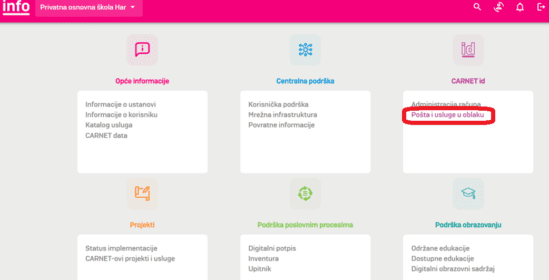
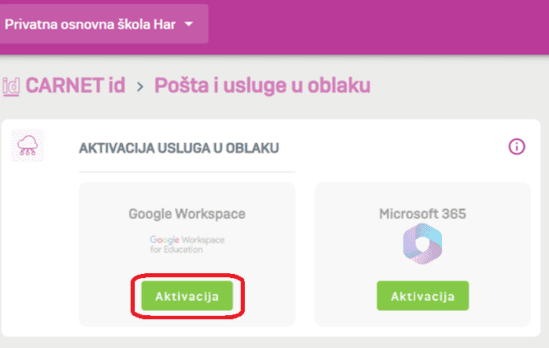
To activate Google Workspace for Education service for your skole.hr user account, you need to log in to CARNET info Click on AAI@EduHr, then in the CARNET ID section click on „Mail and Cloud Services“, and in the Cloud Activation Service section under Google Workspace click „Activation“.
After that, wait the specified time for the service to activate. If the service is already activated, you don't need to click anything, you can use the service immediately.
Access the service via the links below, and please note that after clicking the link, you will log in with your skole.hr user account.
After activating your account, you can directly access in Google Workspace for Education's core package of tools which includes:
- Gmail – email for skole.hr user account with an unlimited size email inbox, to receive email on Google Workspace for Education Gmail, you need to set up email forwarding via CARNET Webmail love Welcome
- Google Classroom (Google Classroom) – for organizing lessons, distributing assignments, and communication between teachers and students.
- Drive (Disk) – for storing all files and accessing files from any device
- Meet (Virtual Meeting) – for calls, video conferences, messaging
- Documents, Sheets, Slides, Calendar, Forms (Documents, Spreadsheets, Presentations, Calendar, Forms) - for creating and sharing documents, spreadsheets, presentations, managing calendars, creating surveys or questionnaires
- Groups (Groups) - for making online group for a team, class, or other group, and exchanging emails, collaborating on projects, or organizing meetings
- Jamboard – presentation board
A Google Workspace for Education skole.hr user account can also be added to tablets from the "School for Life" project, following the procedure described in Questions and answers, and detailed information is in Welcome.
For additional information for teachers on organizing lessons through Google Workspace for Education services and tools, Google's website is also available. Remote learning, as well as workshops available on the pages Training for Teaching with Google Workspace for Education.
Google Workspace for Education users do not see ads while using the service and tools, and user data is not used for analysis for targeted advertising.
Video tutorials for using Google Workspace for Education tools
Google has prepared a series of videos that can help you use Google Workspace for Education tools for teaching from home.
Users
How to become a user
Service activation is possible exclusively through the portal CARNET info. After logging into the portal, click on the right side. Post and cloud services, and then within Cloud Services Activation, foot Google Workspace click Activation.
More information about the portal can be found on the page CARNET info.
For further instructions on use Google Workspace for Education upgrade i service browse Google support pages:
- Temporary Google hub for information and tools to help teachers teach from home
- Google Workspace for Education instructions for new users
- Pages for teachers' lifelong learning, designed to be free online content and training helped teachers better and more easily use Google Workspace for Education tools and services
- Explore real-world examples of how school teachers and other schools are using Google Workspace for Education tools and services. You'll find hundreds of ideas, best practices, guides, and templates.
Questions and answers
Service Activation
To activate Google Workspace for Education service for your skole.hr user account, you need to log in to CARNET info Click on AAI@EduHr, then in the CARNET ID section click on „Mail and Cloud Services“ (Image 1), and in the Cloud Activation Service section under Google Workspace click „Activation“ (Image 2).
Adding a Google Workspace for Education account to tablets from the School for Life project
The first step is in webmail, it serves to activate the school.hr account on Google Workspace for Education and can be done from any computer, not necessarily from a tablet:
- Open https://webmail.carnet.hr, select “desktop mode” If you are on a tablet and log in with school.hr user credentials.
- In webmail, open the page from the Mail menu | Office365 / Google Workspace for Education (GSuite).
- At the bottom of the page, you can find the status of the Google Workspace for Education service for your user account. If it's inactive, follow the activation link to activate the account. If the account is already activated, proceed to step 6.
- The activation process takes up to 60 minutes, and after activation, the user receives a confirmation message to their webmail address.
- After receiving the email, it is important to log out and log back into webmail so that the system can check your new Google Workspace for Education status.
- Reopen the page from the Mail | Office365 / Google Workspace for Education webmail menu and at the question at the bottom of the page, “Where do you want to receive your new email?”, select Google Workspace for Education and “Save”.
- Log out of webmail.
The second step is on the tablet and is used to connect the user's Google Workspace for Education account to the tablet:
- On the tablet the user will receive, open the ProMDM Fort app, and in the menu in the upper right corner of the interface, select the last option, „Add Google Workspace for Education skole.hr account.“.
- Log in with the tablet user account and finish the process by tapping “Done.”.
- Check: Selecting the Gmail app on the tablet will open the email for that student.
Using email through Google Workspace for Education
To use Google Workspace for Education services to receive and send email for your school.hr user account, you need to have an active Google Workspace for Education account and set up email forwarding via webmail interfaces, by selecting the Mail | Office365 | Google Workspace for Education menu, and by selecting the Google Workspace for Education option when asked “Where do you want to receive your new email?”.
If you do not set up forwarding, the user's email will continue to arrive in the CARNET email inbox.
After successfully setting up email forwarding, you can access the new email mailbox via the link https://workspace.google.com/gmail.
Mail forwarding instructions are also available at the link Instructional simulation for forwarding emails from CARNET webmail to O365 or Google Workspace for Education.
Check which user account you are using to access Gmail. If you are a private @gmail.com account user, by activating your @skole.hr Google account, you have received an additional Google account, and it is necessary to check which account you are using to access your Gmail inbox. Select the Google account icon (in the browser, upper right) and check if the active account is in the @skole.hr format. If the account is not active, select “Add another account” and enter your @skole.hr user credentials.
Electronic messages received before forwarding was set up remain in the mailbox where they were initially received. Only the user can manage their messages and migrations of old messages, and they are available instructions How to transfer all old emails to a new Google Workspace for Education Gmail inbox and delete them from the original inbox.
The CARNET for skole.hr domain is managed by the Google Workspace for Education service. You can review the email service options on the pages at Comparison of capabilities, in the row of the table “Google Workspace (includes Google Workspace for Education)”.
Google Workspace for Education is a service from Google's Google Workspace suite (formerly known as G Suite for Business) and is free for educational institutions to use. Visually, Google Workspace for Education tools are similar to Google tools for private use, such as the Gmail tool and the web interface for reading emails, but Google Workspace for Education Gmail offers greater capabilities and capacity:
| Gmail | Google Workspace for Education Gmail | |
|---|---|---|
| Purpose | Private email communication | Business Email Communication |
| Email domain | @gmail.com | ime.prezime@skole.hr |
| Mailbox capacity | 15 GB | Unlimited |
| Web interface | Web interface, IMAP, POP | Web interface, IMAP, POP, Microsoft Outlook, according to Welcome |
You can review the differences in other characteristics of available services and tools compared to Google services available to private individuals. here.
GDPR compliance
Use of Google Workspace for Education services is voluntary and cannot be anonymous. For more information on service activation compliance with GDPR regulations, personal data usage, and Google Workspace for Education security settings, please read here.
User instructions and manuals
Contact
CARNET Helpdesk
Phone: +385 1 6661 555
E-mail: helpdesk@carnet.hr